Guide
How to stop a meeting room being double-booked.
A room booked twice is rarely anyone’s fault: two people looked at the calendar a minute apart, or a weekly meeting and a one-off met in a week nobody checked. The fix is a calendar that refuses the second booking when it is made. Here is how to set one up.
- 01Give each room its own sub-calendar.
- 02Turn on Prevent Overlapping Events for it.
- 03Give people Add Only or Modify My Events on the room.
- 04Put each meeting on its team’s calendar and the room’s.
- Step 1
Give each room a sub-calendar of its own
In Calendar Settings, open Sub-Calendars and add one for each room: Boardroom, Meeting Room 2, the Focus Room. Put them in a Rooms folder so they sit together in the sidebar. The same goes for anything else that can only be in one place at a time, such as a van, a projector or a court.
A room needs its own sub-calendar because double-booking prevention is a setting on a sub-calendar. A shared Rooms calendar holding every room would refuse two meetings in different rooms at the same time.
- Step 2
Turn on Prevent Overlapping Events
Edit the room’s sub-calendar and tick Prevent Overlapping Events. From then on, a booking that would overlap another on that sub-calendar is refused when someone tries to save it.
Turning it on does not change bookings that already overlap: they stay as they are, and editing one of them will be refused until the clash is resolved. Look through the room’s coming weeks once, and move anything that clashes, before telling people the room is protected.
- Step 3
Decide who can book the room
In Members, give people who book rooms Add Only on each room: they can add bookings but not change anyone else’s. Modify My Events also lets them move or cancel the bookings they made. Keep Modify, which changes any booking, for whoever looks after the rooms.
People who only need to know when a room is free can have Read Only, No Details. They see every booking as Reserved.
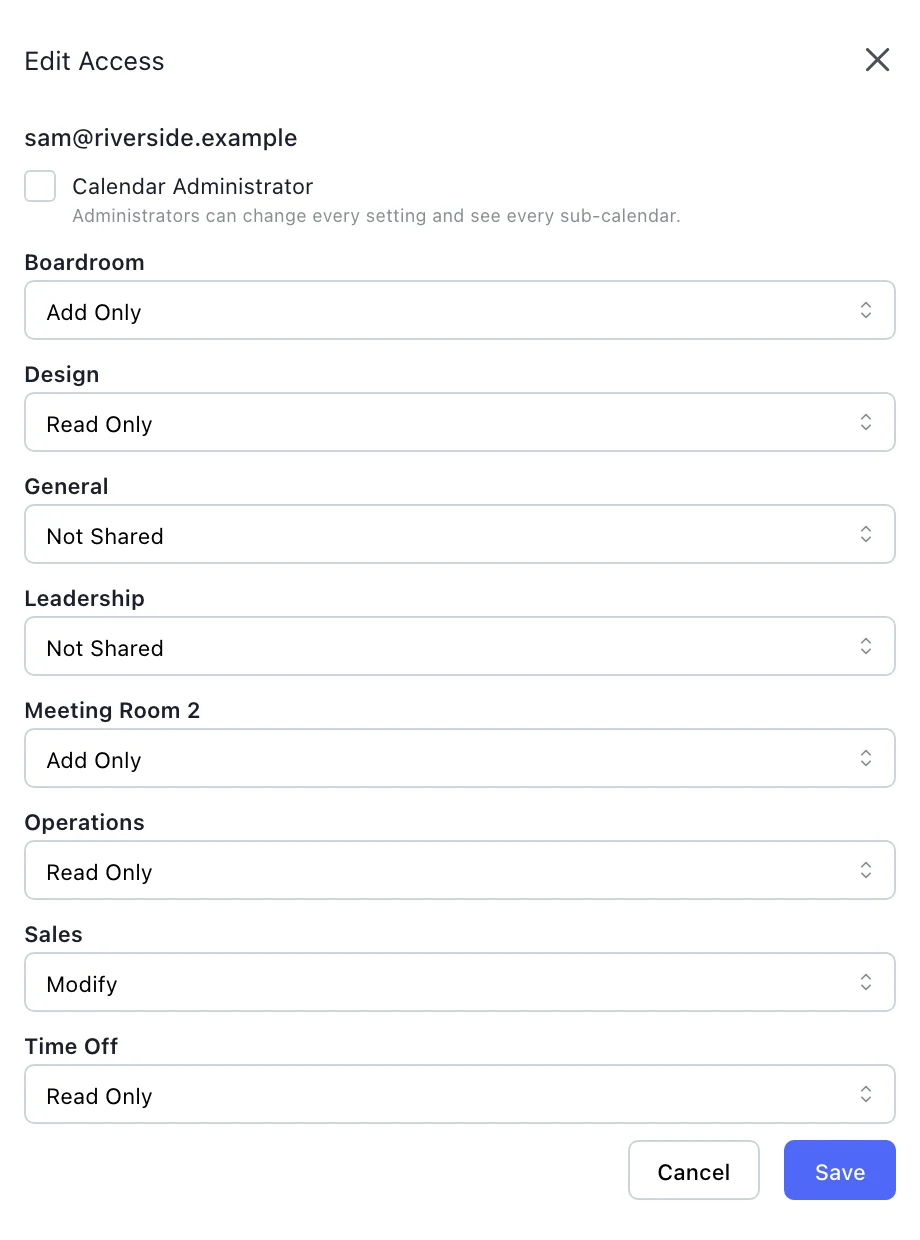
One person’s access, set on each sub-calendar in Calendar Settings, Members. - Step 4
Book the meeting on the room and the team
An event can sit on several sub-calendars at once. Put a client meeting on Sales and on the Boardroom, and it appears on both, once. The team’s calendar shows the meeting; the room’s calendar shows the room is taken; and the room’s check applies.
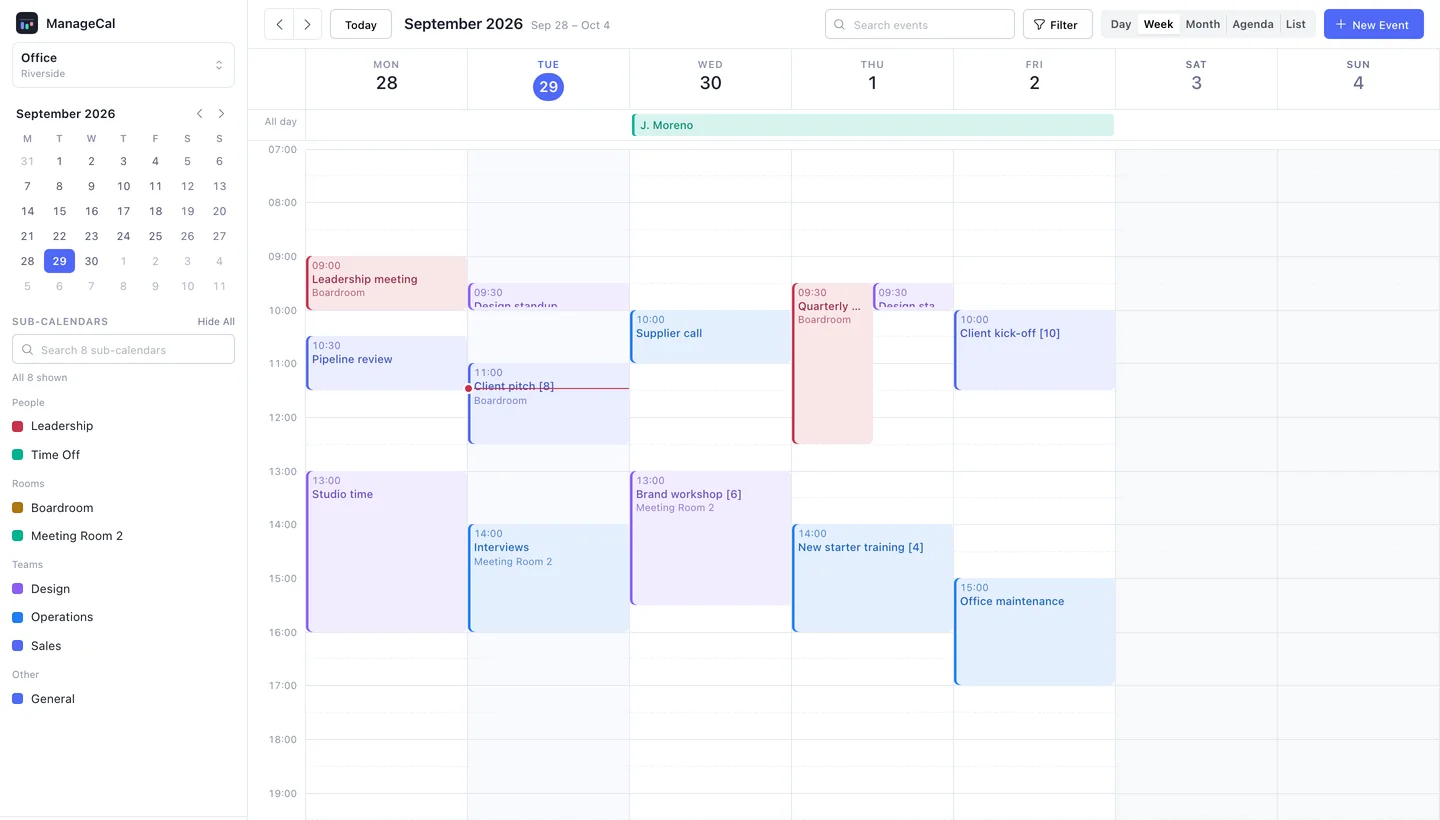
An office calendar in week view: rooms, teams and people as colour-coded sub-calendars. - Step 5
What happens when two bookings clash
The second booking is refused when it is saved. The message names the booking it clashes with, if the person saving it is allowed to read that booking, and otherwise says only that it clashes with a Reserved booking. The start time is marked, and the booking can be moved to another time or another room while there is still time to tell people.
Bookings that end at eleven and start at eleven do not clash. Back to back is fine.
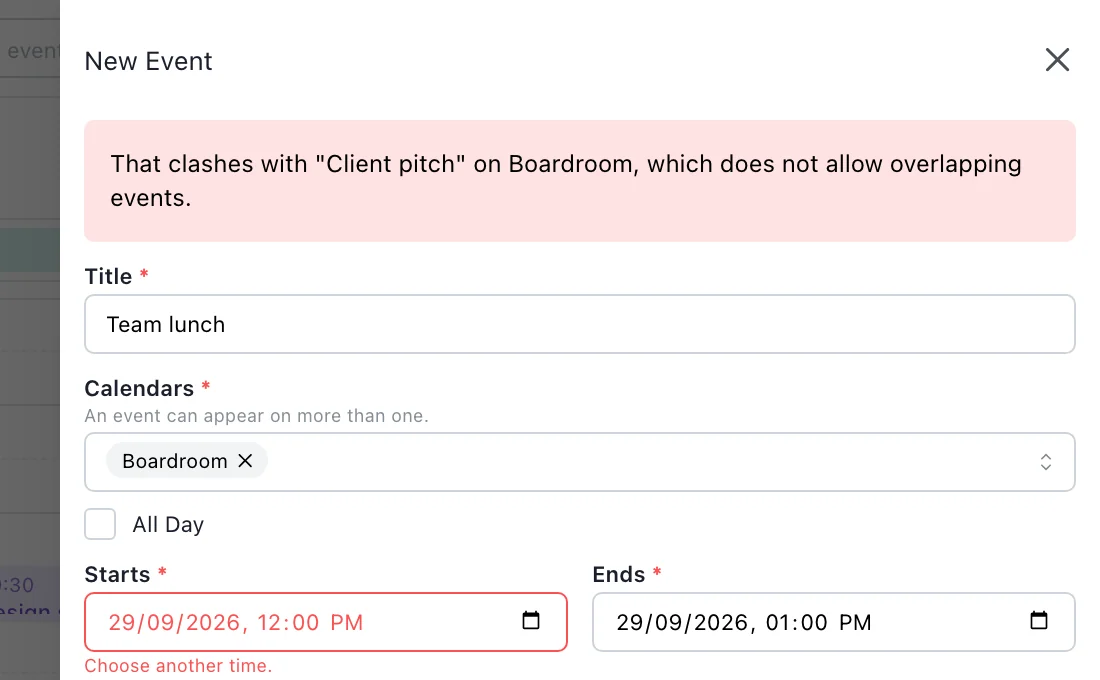
A booking that would overlap another in the boardroom is refused when it is saved. - Step 6
See one room’s day at a glance
Switch every other sub-calendar off in the sidebar and the calendar shows only that room: its free and taken hours for the day or the week. Switch a second room back on to compare two. It changes only your own view.
ManageCal has no view with a column per room yet, so comparing many rooms at once means reading their colours in Week or Day view. Giving each room a clearly different colour, and keeping them in one folder, makes that quick.
- Step 7
Book repeating meetings with confidence
A weekly meeting booked on a room is checked against every other booking on that room for as long as it runs, or across the coming year if it never ends. A one-off booking that lands on a week the weekly meeting holds is refused too, however long ago the weekly one was made.
Tuesday, three months aheadBoardroom 09:0010:0011:0012:00Boardroom09:00Weekly team meeting09:30Supplier visitRefused11:00Interview
Questions this guide gets.
Does this stop two meetings in different rooms at the same time?
No, and it should not: the check applies within one sub-calendar. Two rooms are two sub-calendars, and each is checked on its own.
Can it stop a person being double-booked?
Only if that person has a sub-calendar of their own with Prevent Overlapping Events turned on. Most teams leave it off for people and on for rooms and equipment.
Is there an approval step for room bookings?
No. A booking is accepted if the person has access to make it and nothing clashes.
Which plans include double-booking prevention?
Team and Business. Prices are indicative while ManageCal is in development, and nothing is charged yet.
- Room bookingRooms, vehicles and equipment that refuse a double booking.
- Sub-calendarsColour-coded sub-calendars in folders, five views, several calendars per workspace.
- Recurring eventsRepeating events with exceptions, ends, and daylight saving handled.
- Share a calendar without the detailsLet people see when time is taken without seeing what it is taken for.
- Plan staff shifts on a shared calendarA rota everyone can read, with fixed shifts that repeat and one-off changes.
Put your whole organisation on one calendar.
Set up your sub-calendars, decide who sees what, and start scheduling.