Skip to content
ManageCal

Permissions

Share the calendar. Keep what is in it to the people it concerns.

Most shared calendars make you choose between everyone seeing everything and everyone keeping their own. ManageCal sets access per person on each sub-calendar, so one schedule can serve the whole organisation and still keep a secret.

01

Access sits on each sub-calendar, not on the calendar

A calendar in ManageCal is split into sub-calendars: one per team, room, person or piece of equipment. Access is granted per person on each of them. The same person can edit their team’s calendar, see that the meeting room is taken without seeing why, and not know the leadership calendar exists.

That is the whole model. There are no groups to reason about and no inherited rules to trace: to know what someone can do, you read their level on the sub-calendar in front of you.

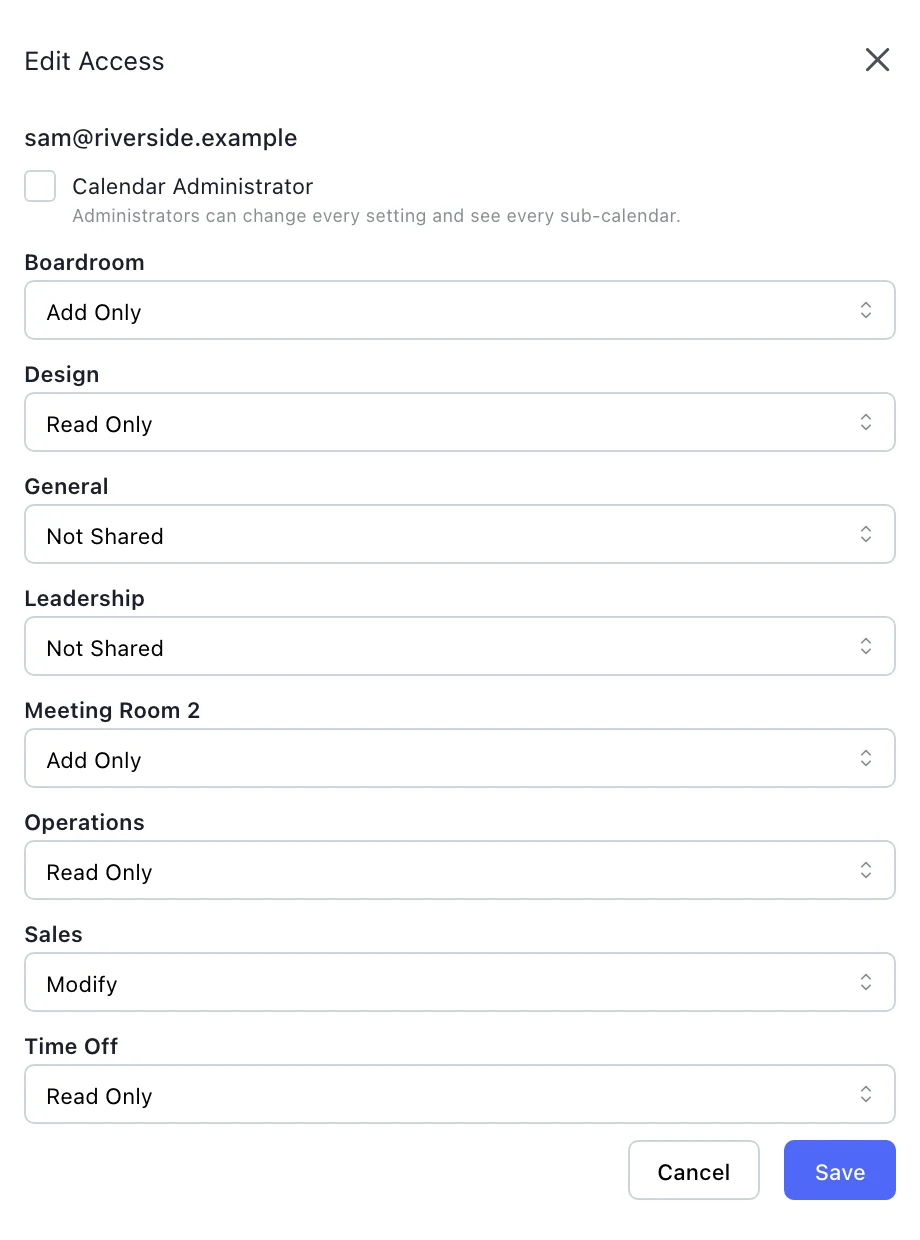
The Edit Access drawer for one person. Each sub-calendar has its own level: Add Only on the boardroom and meeting room 2, Modify on Sales, Read Only on Design, Operations and Time Off, and Not Shared on Leadership.
One person’s access, set on each sub-calendar in Calendar Settings, Members.
02

One day, three people, three different calendars

The same Thursday, as an office manager, a team lead and a contractor see it. The manager sees everything. The team lead sees their team in full, the room as Reserved, and no trace of the board meeting. The contractor sees only when the staff are busy.

Office managerAdministrator
Thu 17
09:00Visitor tour13:00Interviews15:30Board meeting

Sees every calendar and every detail.

Team leadMixed access
Thu 17
09:00Visitor tour13:00Reserved

Can see the room is booked, not what for. Leadership is not shared with them.

ContractorRead only, no details
Thu 17
09:00Reserved

Knows when the staff are busy. Nothing else is theirs to see.

StaffMeeting RoomLeadershipWithheld
03

The nine levels

Each level is a combination of two things: how much of an event you can see, and what you can change. Every level that lets you see an event has a “no details” twin that shows only the time.

LevelSeesCan change
AdministratorEverythingAny event, and the calendar’s settings
ModifyEverythingAny event
Modify My EventsEverythingAdds events, and changes the ones they created
Modify My Events, No DetailsTimes onlyAdds events, and changes the ones they created
Add OnlyEverythingAdds events, and changes none
Add Only, No DetailsTimes onlyAdds events, and changes none
Read OnlyEverythingNothing
Read Only, No DetailsTimes onlyNothing
Not SharedNothing: the sub-calendar does not appearNothing
04

“No details” means the details are never sent

An event someone can see only without details reads Reserved, with its time and its sub-calendar and nothing else. The title, the description and every custom field value are removed on the server before the response is written, so they are not in that person’s browser for a curious click to find.

Search respects it too. A Reserved event never matches a search or a field filter, so typing a guess teaches nothing. And when a booking is refused because it clashes with one of these, the message says only that it clashes with a Reserved booking.

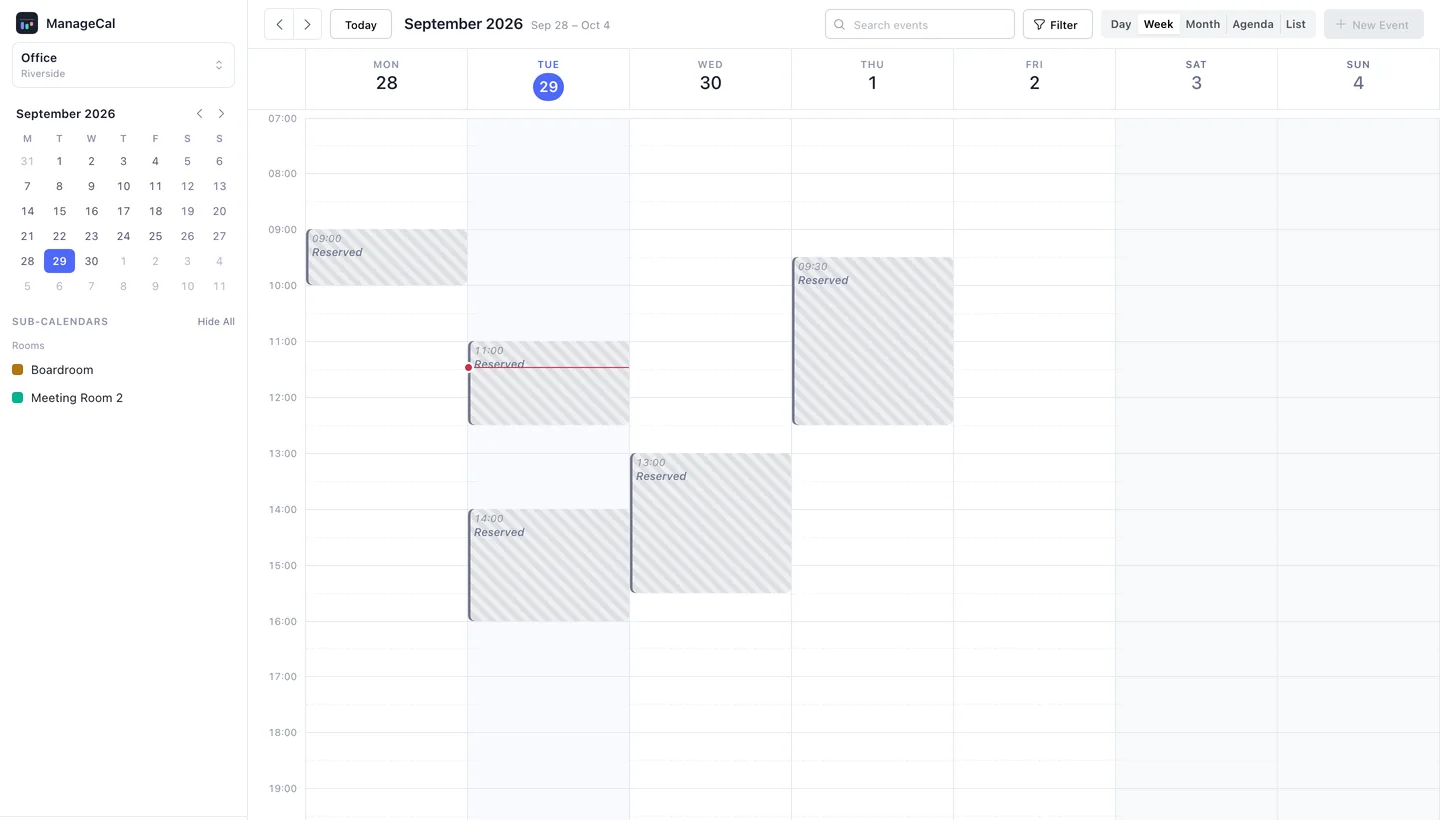
The same week as a contractor with no-details access to the two meeting rooms sees it. Only the rooms appear in the sidebar, and every booking is a grey striped block reading Reserved, with its time and nothing else.
The same week, as a contractor with Read Only, No Details on the rooms sees it.
05

Two rules for an event on several calendars

An event can sit on more than one sub-calendar, and a person may hold different levels on each. ManageCal decides it the same way every time. To see an event, the most generous level you hold on any of its sub-calendars applies: if you can read one of them in full, you see it in full.

To change an event, you need a level that allows it on every sub-calendar it is on. Without that rule, someone who can edit a public calendar could add a private one to an event and write into a calendar they were never given.

06

Fields only editors can see

Access works on single fields as well as whole events. Any custom field can be set so that only people who can edit the event see it: a job’s value, the reason someone is on leave, an internal note. Everyone else gets the event without that value, and a search or filter does not match on it.

Kitchen fit-outThu 15 Oct · 08:00 – 12:00 · Crew A
Site
14 Mill Lane
Status
Scheduled
Parts Ordered
Yes

Job value: withheld, visible only to editors

Questions

Permissions: common questions.

Can I share a calendar so people see when I am busy but not what I am doing?

Yes. Give them Read Only, No Details on that sub-calendar. They see the times as Reserved, and the title, description and fields are never sent to them.

Does a hidden calendar show up as locked or greyed out?

No. A sub-calendar someone has not been given does not appear for them anywhere: not in the list, not on events that also sit on other calendars, not in search.

Who can change the access levels?

Only administrators of that calendar. Administrator is the one level that reaches the calendar’s settings: sub-calendars, folders, fields and people.

Can someone add events without being able to read the calendar?

Yes. Add Only, No Details lets them add events while every existing event, their own included, reads Reserved to them.

Can people be given access by a shared link instead of an account?

Not today. Everyone signs in with their own email address, by a link sent to it, so every level is tied to a person you added.

Get started

Put your whole organisation on one calendar.

Set up your sub-calendars, decide who sees what, and start scheduling.

Open ManageCal