Guide
How to share a calendar without showing what is in it.
Reception needs to know the director is busy at three. A contractor needs to know the meeting room is taken. Neither needs to know why. Here is how to set a shared calendar up so everyone sees exactly as much as they need, and the rest never reaches them.
- 01Put things with different audiences on different sub-calendars.
- 02Give each person a level on each sub-calendar; use a “no details” level where they need the time but not the content.
- 03Use Not Shared where even the existence of a booking is private.
- 04Keep single sensitive fields to the people who can edit.
- Step 1
Decide what each group needs to know
Start with the people, not the calendar. For each group, ask one question: do they need to know what is happening, or only that time is taken? Reception answering the phone needs the second. A team working together needs the first. Someone outside the organisation may need nothing at all.
Write the answer down per group. It becomes the access settings in step three, and it is much easier to agree on a list than on a screen of drop-downs.
- Step 2
Split the calendar by who may read it
Access in ManageCal is set on each sub-calendar, so anything with a different audience needs a sub-calendar of its own. Leadership meetings go on Leadership, not on a shared Meetings calendar. The rooms get a sub-calendar each, because everyone needs to know when they are free.
An event that involves two audiences can sit on both sub-calendars. Each person then sees it at the most generous level they hold on either.
OfficeSuggested set-up Rooms- BoardroomNo overlaps
- Meeting Room 2No overlaps
Teams- Sales
- Operations
People- Time Off
- Leadership
- Step 3
Give each person a level on each sub-calendar
In Calendar Settings, open Members and edit a person. Each sub-calendar has its own drop-down. For the people who only need to know that time is taken, choose Read Only, No Details. If they also book things, such as a receptionist adding appointments, choose Add Only, No Details.
Leave anything they should not see at Not Shared. A sub-calendar that is not shared with someone does not appear for them at all: not in the sidebar, not as a locked row, and not on an event that also sits on a calendar they can see.
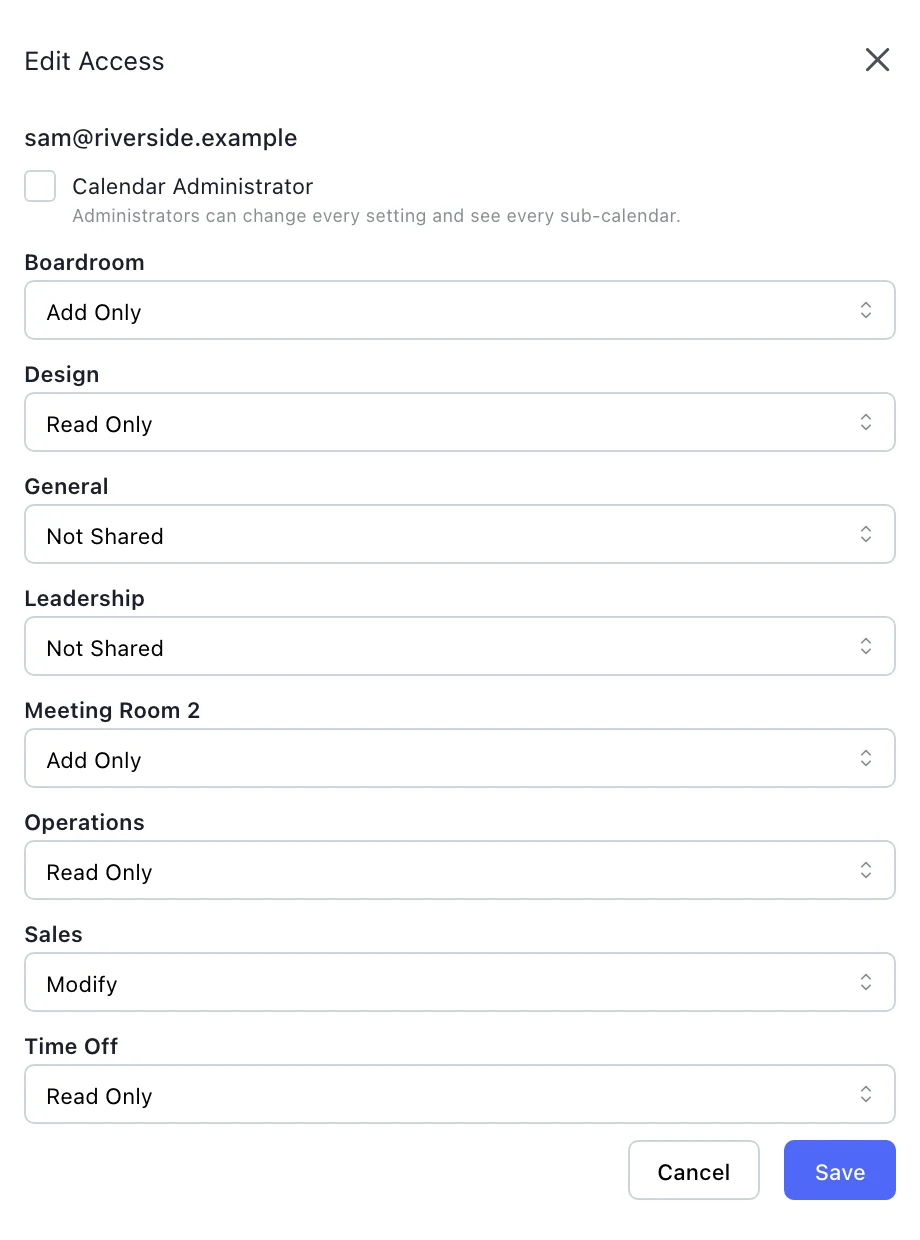
One person’s access, set on each sub-calendar in Calendar Settings, Members. - Step 4
Check what they actually see
A person with a no-details level sees each booking as a block reading Reserved, with its time and its sub-calendar and nothing more. The title, the description and every field are removed on the server before anything is sent, so they are not in the page for someone to find with the browser’s tools.
Search follows the same rule. A Reserved booking never matches a search or a filter, so typing a guess teaches nothing, and a booking refused because it clashes with a Reserved one does not name it either.
ManageCal has no “view as” mode today. The quickest check is to add a second email address of your own at the same level and sign in with it.
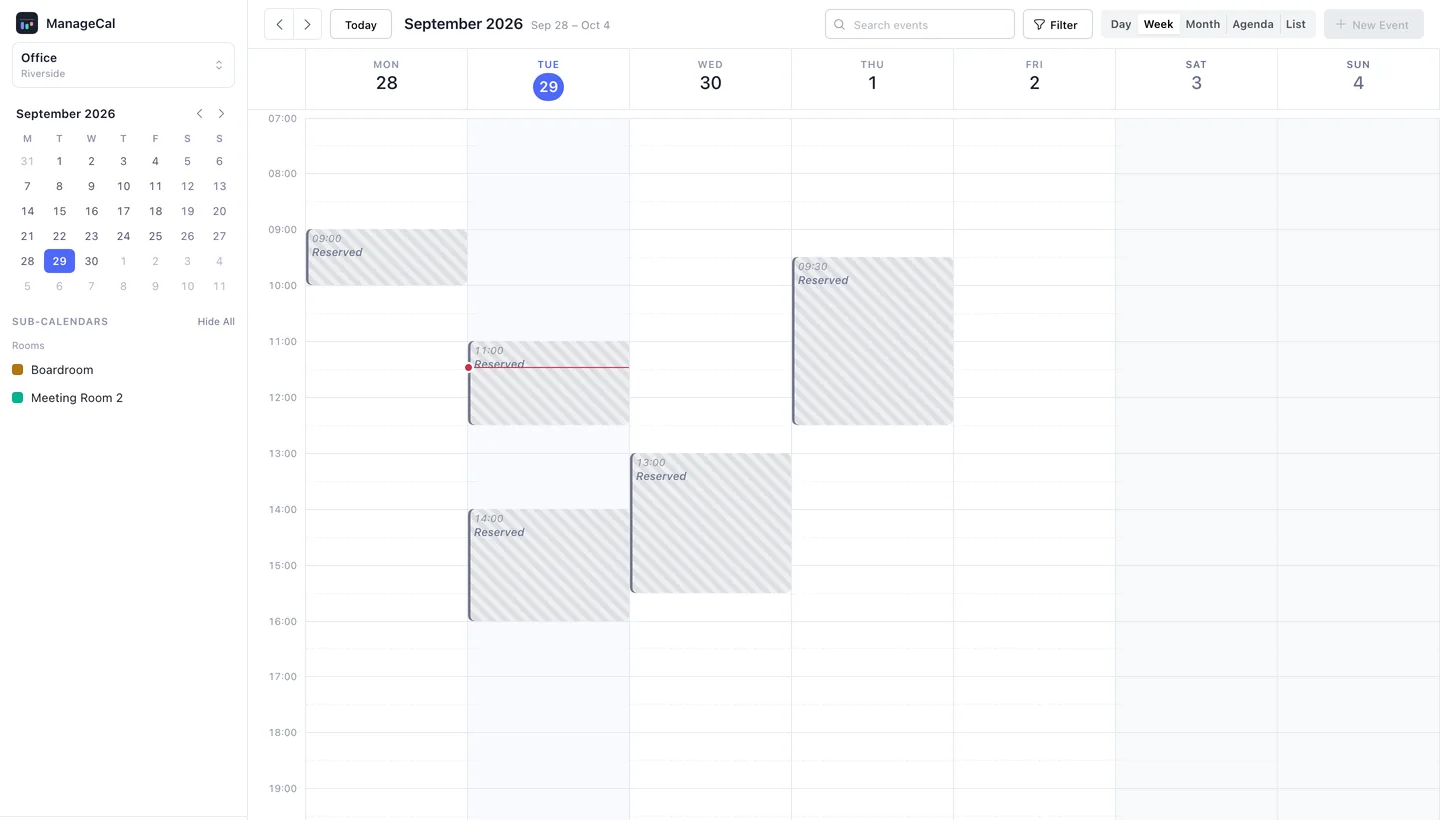
The same week, as a contractor with Read Only, No Details on the rooms sees it. - Step 5
Keep single sensitive fields to editors
Sometimes the event is fine to share and one detail is not: the reason someone is on leave, a job’s value, an internal note. Edit that field in Event Fields and set Who Can See It to Only People Who Can Edit It. Everyone else receives the event without that value.
J. MorenoWed 30 Sep – Fri 2 Oct · All day · Time Off- Person
- J. Moreno
- Covering
- A. Braun
Leave type: visible only to editors
- Step 6
Know what “no details” still shows
Reserved hides what a booking is about, not that it exists. The time, the length and the name of the sub-calendar are still visible, and on a calendar called Recruitment that can say a good deal on its own. When the existence of a booking is itself private, use Not Shared, or put the booking on a sub-calendar with a name that gives nothing away.
No details also applies to a person’s own bookings on that sub-calendar: someone with Add Only, No Details sees the bookings they made as Reserved too.
Questions this guide gets.
Can someone with “no details” access see who made a booking?
No. The person who created or last changed a booking is withheld along with its title, description and fields.
Can they find hidden details by searching?
No. A booking they can only see as Reserved never matches their search or filters, so a search cannot be used to test a guess.
Will they see the bookings they made themselves?
Only as Reserved. The no-details levels hide the details of every booking on that sub-calendar, their own included.
Can I share a calendar with someone who has no account?
Not today. Everyone signs in with their own email address, by a link sent to it, so every level belongs to a person you added.
- PermissionsNine access levels per person, per sub-calendar, including “no details”.
- Sub-calendarsColour-coded sub-calendars in folders, five views, several calendars per workspace.
- Custom fieldsNine field types you define, filter by and change without losing values.
- Stop a room being double-bookedMake a room, a van or a court refuse overlapping bookings.
- Plan staff shifts on a shared calendarA rota everyone can read, with fixed shifts that repeat and one-off changes.
Put your whole organisation on one calendar.
Set up your sub-calendars, decide who sees what, and start scheduling.