Guide
How to plan staff shifts on a shared calendar.
A rota on a whiteboard or in a spreadsheet is out of date the moment someone swaps. On a shared calendar each shift is an event, fixed shifts repeat by themselves, and a one-off change is made to that one shift. Here is a set-up that works for a shop floor, a front desk, a kitchen or a clinic.
- 01One sub-calendar per section or role.
- 02The staff member’s name in a field shown in event titles.
- 03Fixed shifts as weekly repeating events; changes to single shifts as This Event.
- 04Time off on a sub-calendar of its own.
- Step 1
Choose sections or people
Make a sub-calendar for each section or role: Front Desk, Floor, Stockroom. People then read the rota section by section, and a manager can show several side by side. This scales better than a sub-calendar per person, which is worth it only when each person needs their own access or their own double-booking check.
Leave Prevent Overlapping Events off for these. Two people on the floor at the same time is a shift, not a clash.
SaturdayRota 08:0010:0012:0014:0016:0018:0020:00Front Desk07:00Early (R. Okafor)14:00Late (J. Moreno)Floor08:00Day (A. Braun)12:00Mid (L. Fischer)Stockroom07:00Delivery (M. Rossi) - Step 2
Put the name in the title
Every calendar starts with a Who field. Rename it Staff in Event Fields and tick Show in Event Titles: each shift then reads with the person’s name in brackets after it, so the week view is the rota. Add a Role choice field if one section has several roles, and it becomes a filter.
- Step 3
Repeat the fixed shifts
A shift someone works every week is one event that repeats weekly, on the days you choose. End the series on the last day of the rota period, or after a number of weeks, and it stops by itself.
Because the series is one record, a new start time from next month is a single edit, and past shifts stay as they were.
- Step 4
Change one shift without touching the rest
When one week is different, open that shift and choose This Event. Change the time, or the name after a swap, and only that shift changes. Skip This One removes a single shift from the series.
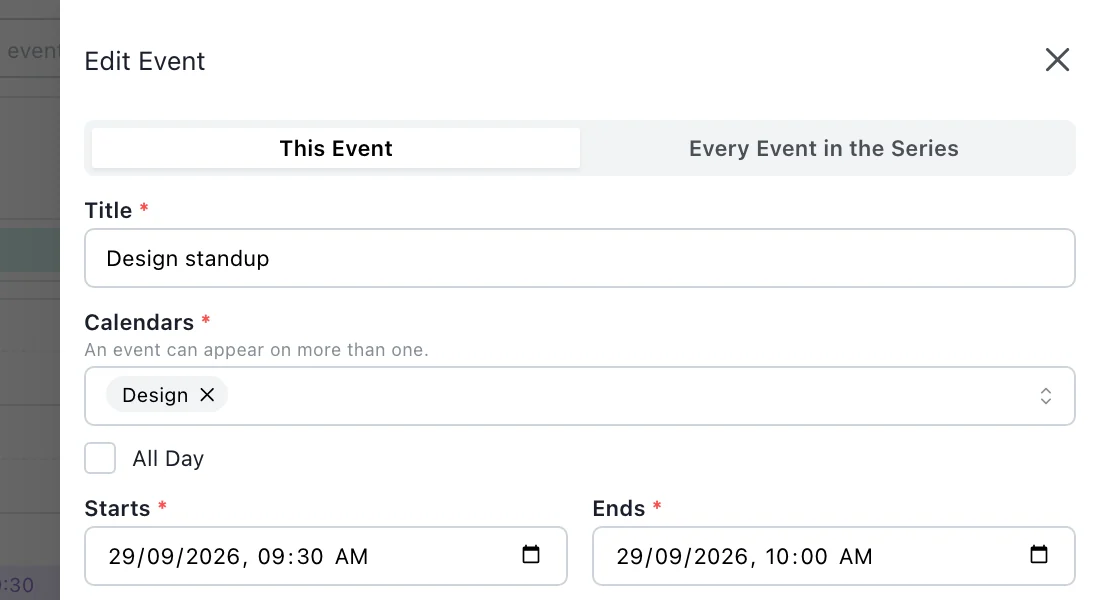
Editing one occurrence of a repeating event: This Event, or Every Event in the Series. - Step 5
Keep time off on its own sub-calendar
Add a Time Off sub-calendar and enter leave as all-day events that span the days someone is away. Everyone can see who is off; a Leave Type field set to Only People Who Can Edit It keeps the reason to the people who manage the rota.
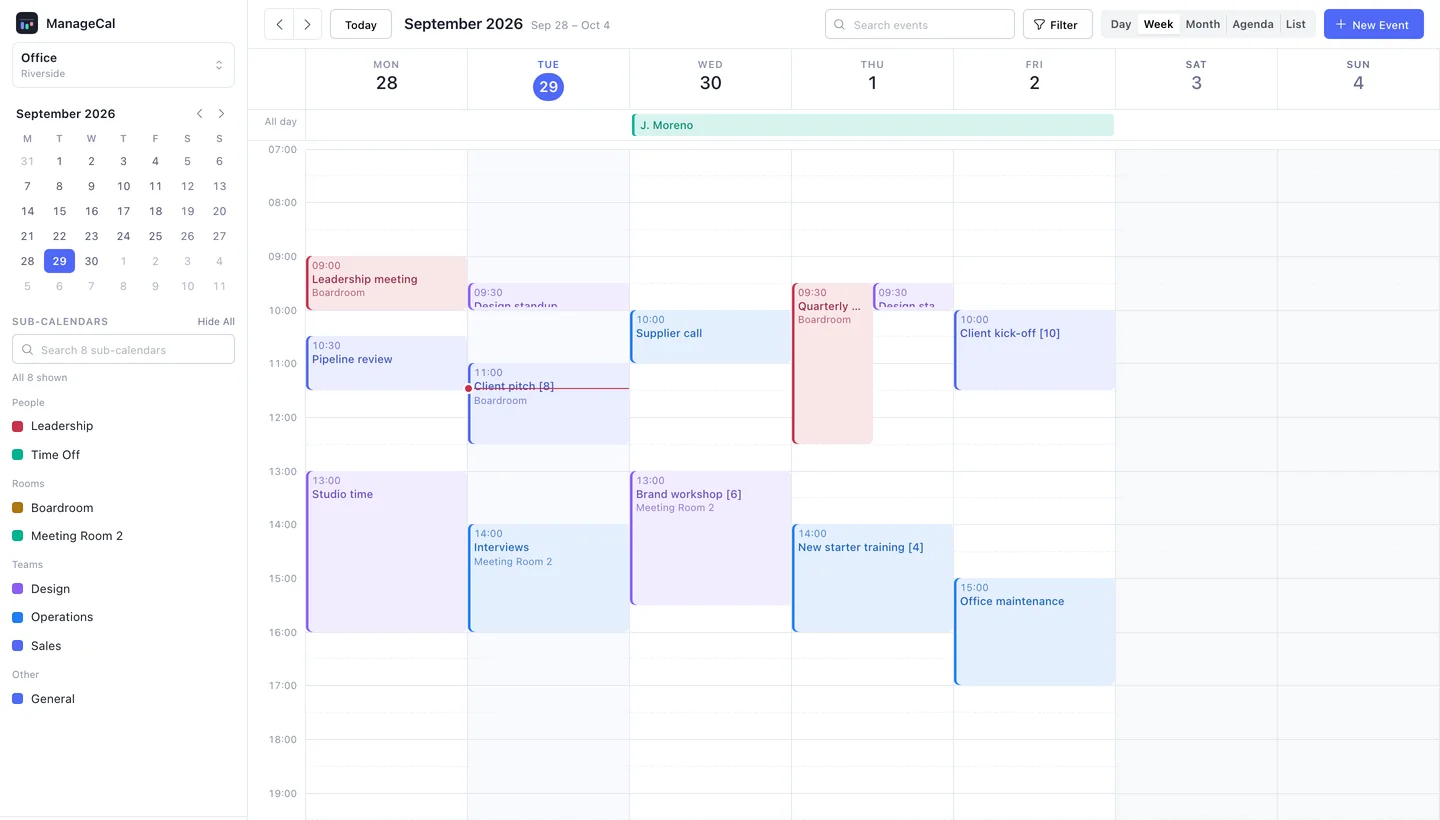
An office calendar in week view: rooms, teams and people as colour-coded sub-calendars. - Step 6
Read the rota the way each person needs it
Week view is the rota for a manager: every section, every shift, with names in the titles. A section lead can switch the other sections off in the sidebar and read only their own; it changes their view and nobody else’s.
Because the staff member’s name is in a text field everyone can see, typing a name into search narrows the calendar to that person’s shifts. List view then reads like a personal rota: day by day, one line per shift.
- Step 7
Decide who can change the rota
Give managers Modify on the sections they run. Give staff Read Only on the rota, or Modify My Events if they are trusted to change the shifts they entered themselves. There is no swap request or approval step in ManageCal: a change is made by someone who has the access to make it.
Questions this guide gets.
Does ManageCal add up hours worked?
No. It has no totals or reports yet. The rota shows who works when; hours still have to be added up elsewhere.
Can staff see only their own shifts?
Staff see the sub-calendars they have been given. For each person to see only their own shifts, give each person a sub-calendar of their own.
Are staff told when their shift changes?
Not by ManageCal today. It sends no messages when events change, so a change still needs a word from the manager.
Can one shift cover two sections?
Yes. Assign the shift to both sub-calendars and it appears on each, once. Changing it then needs write access to both, so a lead for one section cannot move someone out of the other.
What if the same person works the same shift on several days?
That is one event. Set it to repeat weekly and pick the days, such as Tuesday and Thursday, and it appears on each of them until the series ends.
Do shifts keep their times when the clocks change?
Yes. A shift that starts at seven starts at seven before and after daylight saving, because repeats are worked out in the calendar’s own time zone.
- Recurring eventsRepeating events with exceptions, ends, and daylight saving handled.
- Custom fieldsNine field types you define, filter by and change without losing values.
- Sub-calendarsColour-coded sub-calendars in folders, five views, several calendars per workspace.
- Share a calendar without the detailsLet people see when time is taken without seeing what it is taken for.
- Stop a room being double-bookedMake a room, a van or a court refuse overlapping bookings.
Put your whole organisation on one calendar.
Set up your sub-calendars, decide who sees what, and start scheduling.