Skip to content
ManageCal

Custom fields

The details your work records, as fields you define and filter by.

A reference number, a headcount, a status, whether it is paid. Define the fields your events need, show the important ones in the title, filter the whole calendar by them, and change them later without losing what is already stored.

01

Nine types

Each field has a type, and the type decides what it accepts and how it can be filtered. Fields belong to the calendar, so every event on it offers the same ones, in the order you set.

TypeHoldsFor example
Single Line TextA short lineWho, where, a reference
Formatted TextLonger notesInstructions, internal notes
NumberA number, with limits and decimal placesHeadcount, cost
ChoiceOne option, or severalStatus, priority, room
DateA dateDue date, follow-up
CheckboxYes or noPaid, confirmed
Web AddressA linkAgenda, video call
Email AddressAn email addressContact
DurationA length of time, typed as 90 or 1h30mSet-up time
02

Where a value shows

A field can be shown in event titles, in brackets after the name, so the grid says what matters without opening anything. One field per calendar can be shown under the title, where Where sits by default. Every field is listed, under its own label, when the event is opened.

Mark a field as required and an event cannot be saved without it. Mark it visible only to people who can edit the event, and everyone else is never sent its value.

Visitor tour (24)Fri 18 Sep · 10:00 – 13:00 · Staff
Host
A. Braun
Where
Main Hall
Headcount
24
Status
Confirmed
Catering Booked
Yes

Headcount shown in the title

03

Filter the whole calendar

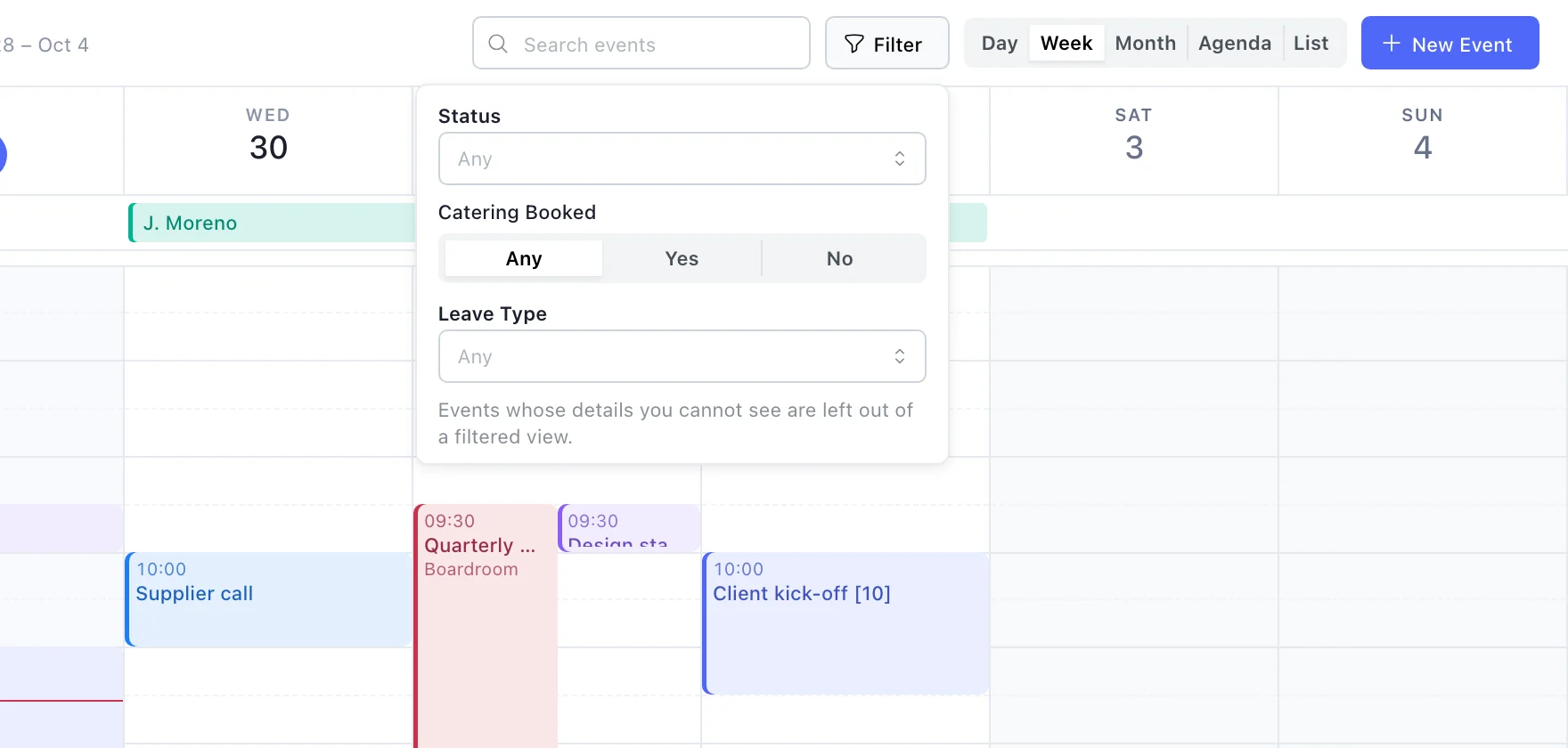
Choice and checkbox fields become filters on the calendar toolbar. Pick Confirmed, or Not Paid, and every view narrows to the events that match, across every sub-calendar you can see. Search covers event titles and the text fields everyone can see, Who and Where included.

Filters and search only ever match what you are allowed to read. An event you see as Reserved never matches, and neither does a field kept to editors.

The Filter menu open on the calendar toolbar, offering the custom fields Status and Leave Type as choices and Catering Booked as Any, Yes or No, with a note that events whose details you cannot see are left out of a filtered view.
Choice and checkbox fields become filters for the whole calendar.
04

Change a field without losing its values

Rename a field whenever you like: values are stored against a key that never changes, so they follow the new name. A field’s type can change too, when no stored value would be lost. Turning a text field into a choice makes an option of each distinct value already stored, and every event keeps its value as that option.

A change that would lose something is refused, with the count and an example of a value that does not fit. The preview runs before anything is saved, and Save stays disabled until it is back.

05

Who and Where are fields too

Every calendar starts with two single-line text fields, Who and Where. They are ordinary fields: rename Who to Host or Coach, turn Where into a choice of your rooms, hide either, or delete them if you do not need them.

Hiding a field keeps every value and takes the field out of sight; showing it again brings them back. Deleting a field removes its values from every event, and says how many events that is before you confirm.

Questions

Custom fields: common questions.

How many custom fields can a calendar have?

It depends on the plan: 3 on Free, 15 on Team and 50 on Business, with every type available on all of them.

Can I filter by a number or a date field?

Not yet. The toolbar filters by choice and checkbox fields. Number, date and duration values show in the event and in titles, and text fields are searchable.

What happens to events if I rename a field?

Nothing changes on them. Values are stored against the field’s key, which is fixed when the field is created, so a rename is only a new label.

Can a choice field allow more than one option?

Yes. Set Allow More Than One and an event can carry several options, and filtering by any one of them finds it.

Can a field be different on each sub-calendar?

No. Fields belong to the calendar and every event on it offers the same ones. A field that does not apply to an event is simply left empty.

Get started

Put your whole organisation on one calendar.

Set up your sub-calendars, decide who sees what, and start scheduling.

Open ManageCal